

This page walks through what actually happens during a Fourgent session, agent by agent. New here? Start with the Introduction.
You type. Four agents take it from there.
When you describe an integration in Fourgent, something like “When a deal closes in HubSpot, create a matching invoice in Xero,” you’re not filling out a form or configuring a template. You’re starting a conversation that hands off through four specialized agents, each responsible for a specific part of getting your integration live. You can watch every step happen in real time: in the chat on the left, and across four panels on the right. Progress, Files, Flow, and Mapping.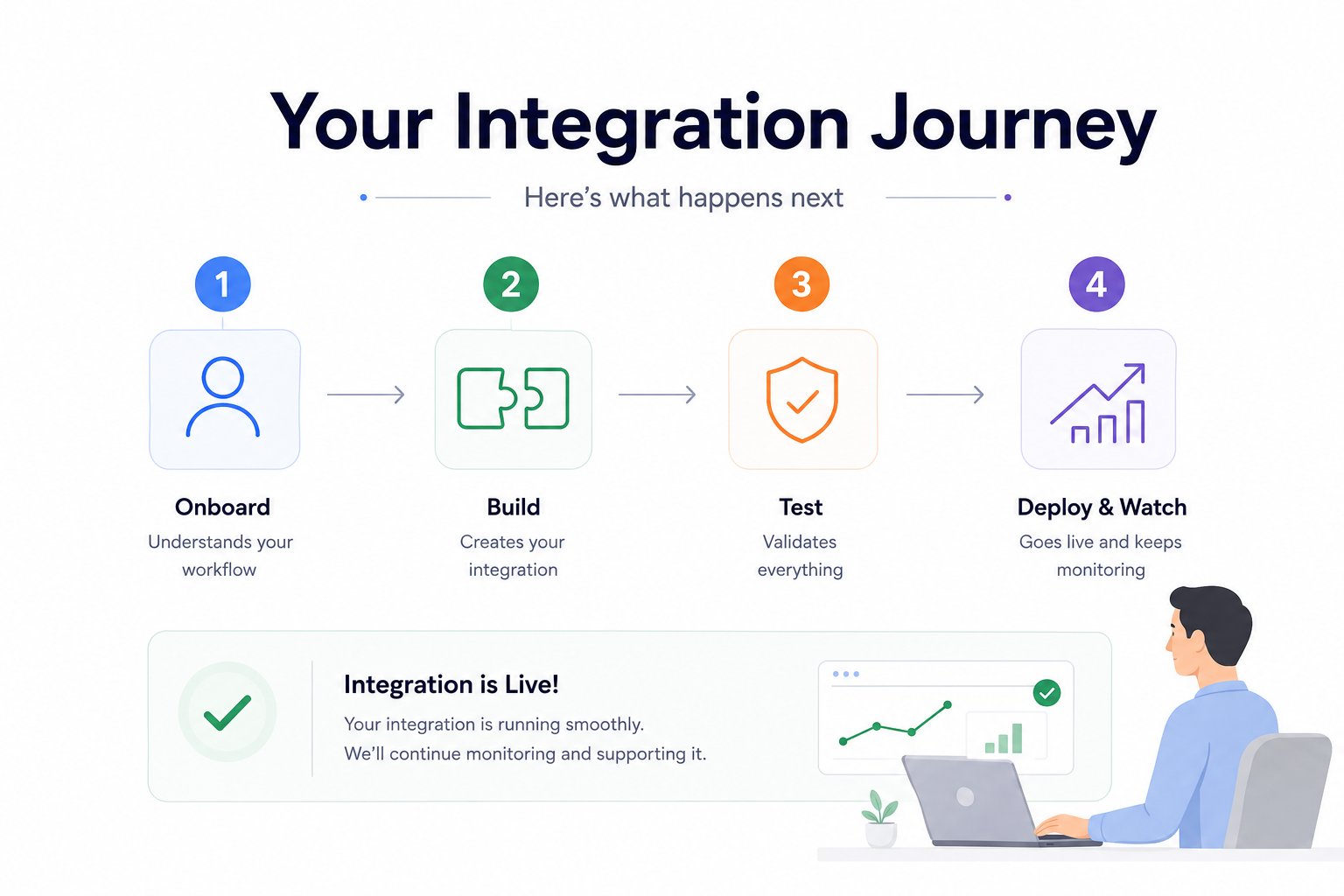
Three agents build it. The fourth one never leaves.
Building an integration is only the first step. Keeping it reliable as your business evolves is what matters. While other tools stop at deployment, Fourgent keeps monitoring, adapting, and protecting every workflow.Starting a Session
Fourgent needs one thing from you: a clear description of what you want built. You don’t need to know which APIs are involved, what the field names are, or how authentication works.- Examples
- What to include
“When a deal is marked Closed Won in HubSpot, create a matching invoice in Xero with the deal name and value.”
“Every hour, sync new orders from Shopify into Visma e-conomic.”
“When a deal closes in Pipedrive, raise an invoice in Fortnox and update the contact’s paid status.”
1. Onboarding
What it does: Connects to your apps, discovers exactly what’s available, and defines every rule before anything is built.1
Connects to your apps
Authenticates with both platforms and confirms the connections are live. You’ll see connections retrieved and verified in the chat, one by one.
2
Discovers what's available
Inspects both platforms: what data exists, what events fire, how fields are structured on each side. You’ll see API Endpoints Found in the chat as it works.
3
Maps your workflow
Defines your workflow in precise terms: trigger, data, conditions, result. Asks targeted questions to prevent failures later, the kind of questions a specialist in your workflow would ask.
As the workflow is mapped, the Flow and Mapping panels begin to populate.
What exactly should trigger the invoice: a deal stage, a signature, or something else?
What exactly should trigger the invoice: a deal stage, a signature, or something else?
If nobody asks: The tool picks “Closed Won” by default. Then someone moves a deal to Closed Won to tidy the pipeline, and a real invoice goes to a real customer.
Should invoice status flow back into your CRM, so sales can see what's been paid?
Should invoice status flow back into your CRM, so sales can see what's been paid?
If nobody asks: The sync is one-way. Sales has no idea whether an invoice was ever paid, so they ask finance every time, and finance answers by hand.
Do your products already exist in the accounting tool, or should Fourgent create them?
Do your products already exist in the accounting tool, or should Fourgent create them?
If nobody asks: Every deal line creates a new product record. Six months in, your item list has four versions of the same SKU and no reliable way to report on any of them.
How should new customers be created, and with which VAT zone and invoice layout?
How should new customers be created, and with which VAT zone and invoice layout?
If nobody asks: Customers arrive with a default zone and a default layout. The VAT is wrong, and the invoice your customer receives doesn’t look like the ones you send.
4
Locks down every edge case
Documents how your integration handles missing data, duplicate records, and conditions that should skip a run. Nothing is left to chance before the next agent starts.
2. Build
What it does: Builds an integration around your exact workflow, including your field mappings, business rules, and every edge case uncovered during onboarding. This isn’t a generic template being filled in. It’s built specifically for how your business runs. As it works, files appear in the Files panel on the right.3. Testing
What it does: Runs a full test suite before anything goes live. Every scenario Onboarding agent documented, every trigger, condition, and edge case, gets validated against real data from your apps. If anything fails, Test identifies exactly what’s wrong, fixes it, and retests. This continues until the suite is clean. Follow results in real time in the Progress panel.4. Deploy & Watch
What it does: Ships the tested integration to production. No manual setup required. Once testing is complete, Deploy & Watch agent takes over. Your credentials are stored securely and never exposed. Once deployed, your integration runs automatically whenever it’s triggered, while the Watch Agent continuously monitors every execution and catches issues before they affect your business.Once It’s Live
After deployment, Fourgent keeps your integration running reliably in the background.Every Run Is Logged
Every time your integration fires, it’s recorded: what triggered it, what happened, whether it succeeded. Nothing fails silently. See the full history in Workflow Runs.
Automatic Retries
If a connected app is temporarily unavailable, Fourgent retries automatically. Recovery happens without you doing anything.
One-Click Replay
Any failed run can be replayed with its original data. No need to wait for the trigger to fire again.
Conditional Routing
Workflows that take different paths depending on the data, different outcomes for different record types or values, handled automatically.
If your workflow changes with a new condition, a new field, or a new app, just describe the update in chat. Fourgent updates the integration, retests everything, and redeploys it.